Showing posts with label ssd. Show all posts

Thursday, March 12, 2026

SSD Reliability: Significant Concerns & Failure Risks

SSD Reliability:
Significant Concerns & Failure Risks

Recent data from 2025-2026 highlights a troubling decline in SSD reliability, driven by firmware-level defects and OS instability. For those accustomed to the historical resilience of flash storage, the current landscape requires a shift in strategy. Our internal data shows 5 client failures in the last 30 day; drives that were operational one day, and the next are DEAD and data is unrecoverable. 

Reported symptoms include spontaneous volume dismounting and critical failure during sustained write operations, and in some cases even issues with Windows Update installations, rendering the hardware entirely unreadable. 

This article's objective is to go over the current issue(s) trends we are noticing and things you can do to protect your data and information; JUST incase your SSD decides to call it quits!

Monday, February 2, 2026

The Best Way to Transfer Data to a New Mac (Time Machine Guide)


The Cleanest Way to Migrate to
a New Mac Computer

Getting a new Mac is exciting, but the thought of moving all your files, passwords, and specific settings can be daunting. Over the years, I’ve found that one method stands out as the absolute best way to transfer your digital life: Apple’s Time Machine backup combined with Migration Assistant.

Monday, December 1, 2025

PNW Computers' Recommended Hardware


PNW Computers' Recommended Hardware

After years of working with small and medium businesses across the Pacific Northwest, I've learned one fundamental truth: the right hardware makes all the difference. Whether you're building out a new office network, upgrading your storage infrastructure, or simply need a reliable mouse that won't quit on you during a critical deadline, choosing the right equipment saves time, money, and headaches down the road.

This guide represents my go-to recommendations for devices that consistently deliver performance, reliability, and value. These aren't just products I recommend; they're the equipment I trust for my own infrastructure and confidently recommend to clients.

Sunday, September 14, 2025

A Complete Guide To SSD Cache Types


Understanding SSD Cache Types:
Complete Guide to SLC, MLC, TLC, QLC, and More

When shopping for an SSD, you'll encounter a bewildering array of acronyms: SLC, MLC, TLC, QLC, and various caching technologies. Understanding these different memory types and caching strategies is crucial for making informed decisions about storage performance, endurance, and value. Let's break down everything you need to know about SSD cache types and technologies.

Friday, August 22, 2025

Clean-room Level Data Recovery Service: That's NOT a Rip Off!


In over 20 years of working with technology and data, I’ve encountered just about every kind of storage failure imaginable; from corrupted file systems to physically damaged drives. And while there are countless data recovery companies out there who would LOVE to charge you an obscene fortune to "help" you get your data back, one Company has gone against that trend has consistently stood out to me, HDD Recovery Services out of Ottawa, Canada: https://www.hddrecovery.ca/

Monday, February 17, 2025

Convert Existing Windows Installation from MBR/CSM to GPT/UEFI!

Convert an existing Windows 10 Installation from Legacy BIOS to UEFI

One of the critical system requirements for Windows 11 is having a GPT partition scheme for installation, which must be based on UEFI. This article explains how to convert existing Windows 10 Installation from the Legacy MBR partition scheme to the more modern GPT UEFI partition scheme, using Microsoft's MBR2GPT.exe tool; all without losing any data or settings!

Monday, April 1, 2024

What Specs Do You Need In A New Computer!?

CPUs:

Both Intel and AMD employ a numbering system to classify their CPU models based on their respective performance.

Tuesday, March 12, 2024

VHD & RMD IODD Drive Setup

Create VHD & RMD Files for a IODD Drive;
Using Windows Disk Manager

If you use an IODD Encrypted External Drive, you already know how incredibly useful it is for mounting disk images on the fly. However, if you’ve ever tried setting up custom VHDs (Virtual Hard Disks) using the official VHD_Tool+ from the IODD website, you’ve probably run into some headaches.

Update: After having nothing but issues with the provided VHD tools, I’ve completely abandoned them. Windows can natively create VHD disks through Disk Management, and I find it to be much easier and significantly more reliable.

Here is the ultimate, pain-free guide to creating a VHD, applying your ISO, and converting it to an RMD (Removable Media Drive) for your IODD drive.

Thursday, April 28, 2022

M.2 SSD Not Detected by Windows 11/10 Installer

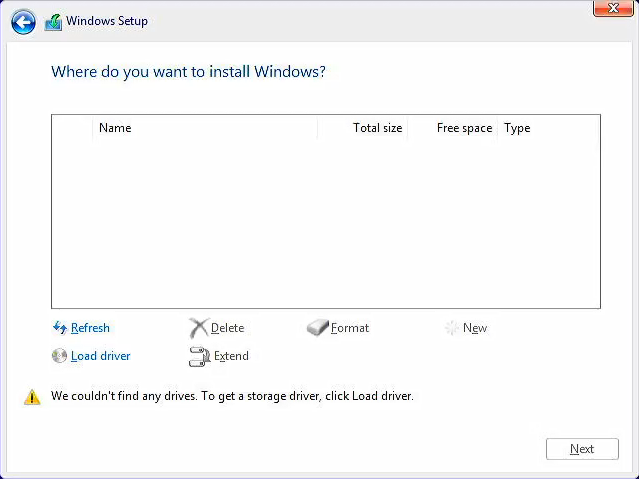
If you experience that the Windows installer cannot find your M.2/NVMe drives when installing Windows 11/10, try this process of loading the Intel IRST driver to gain access to your SSD drive!


For the Intel CPU platform, you need to manually install Intel Rapid Storage Technology (IRST) driver during the Windows installation process. You can also refer to the Intel document of How to Configure RAID or Intel Optane Memory with Intel RST on an Intel VMD Capable Platform.
Note: The following pictures are a reference, it may be varied depending on the different versions.


Manually install Intel Rapid Storage Technology (IRST) driver

  • Download Intel Rapid Storage Technology (IRST) driver Download Link.
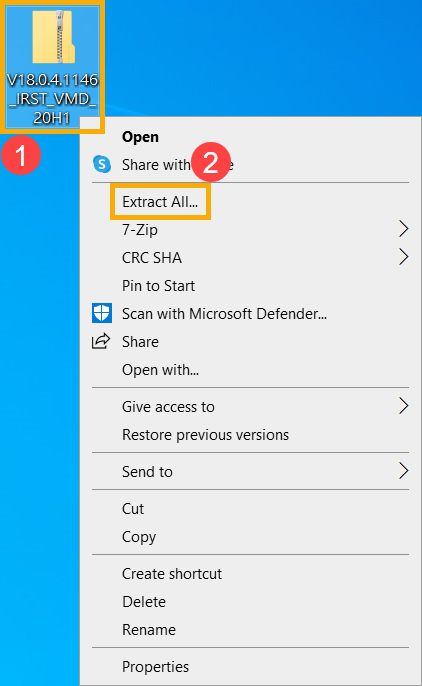
  • After downloading the driver, right-click [V18.0.4.1146_IRST_VMD_20H1] compressed file① and select [Extract All]②.
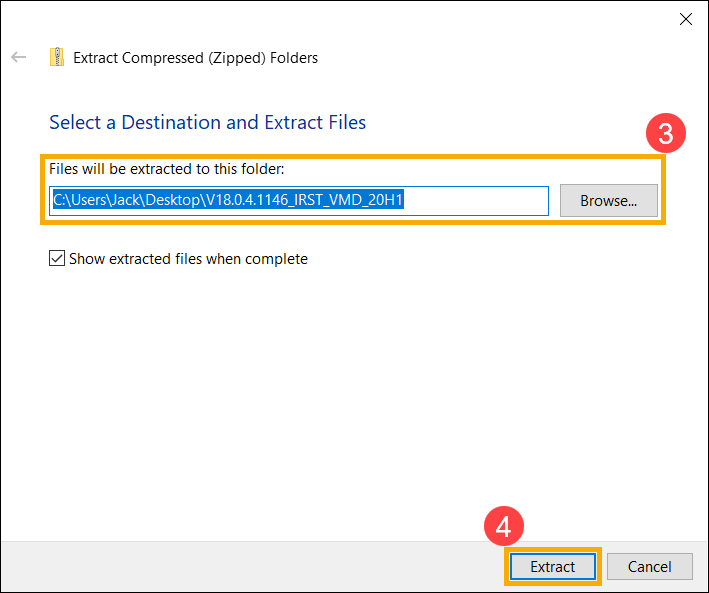
  • Select a Destination③ (such as a USB thumb drive) and click [Extract]④.

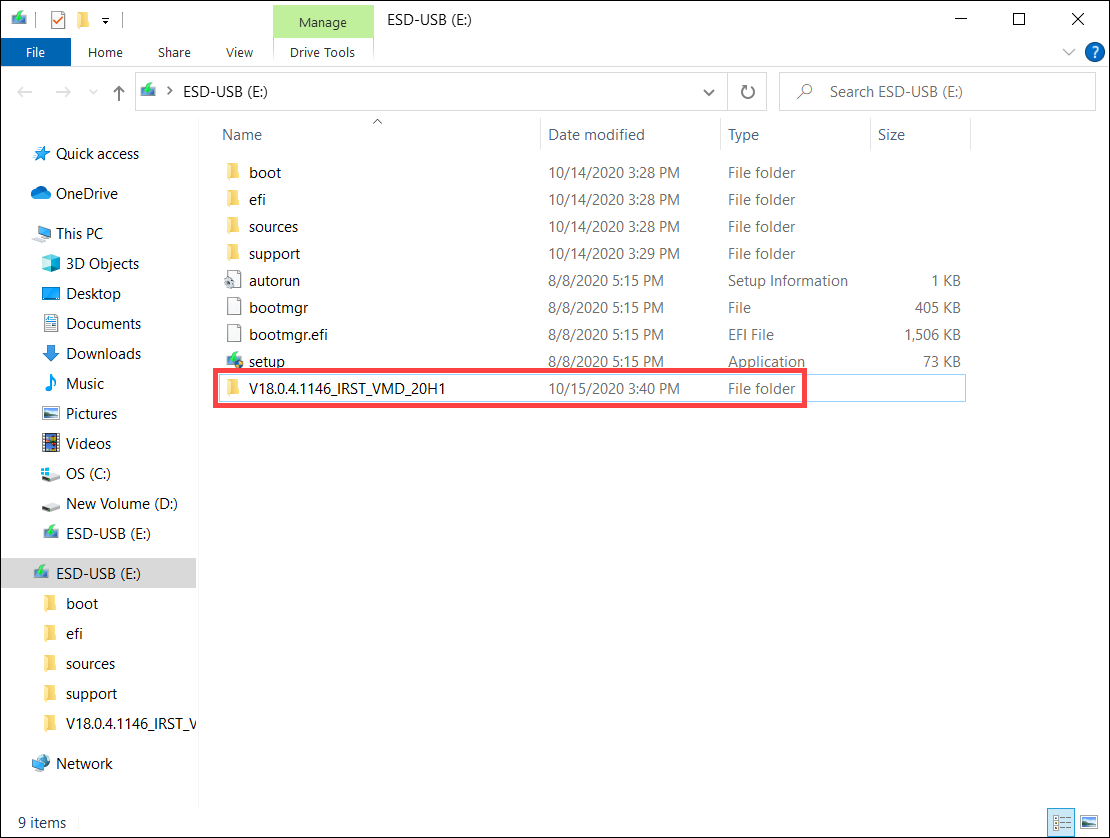
  • After the extraction is completed, please copy the entire folder (V18.0.4.1146_IRST_VMD_20H1) to a USB flash drive.
  • If you used a USB flash drive to create the Windows 11/10 installation media as well, please copy the entire folder to the same USB flash drive which is created as the Windows 11/10 installation media.

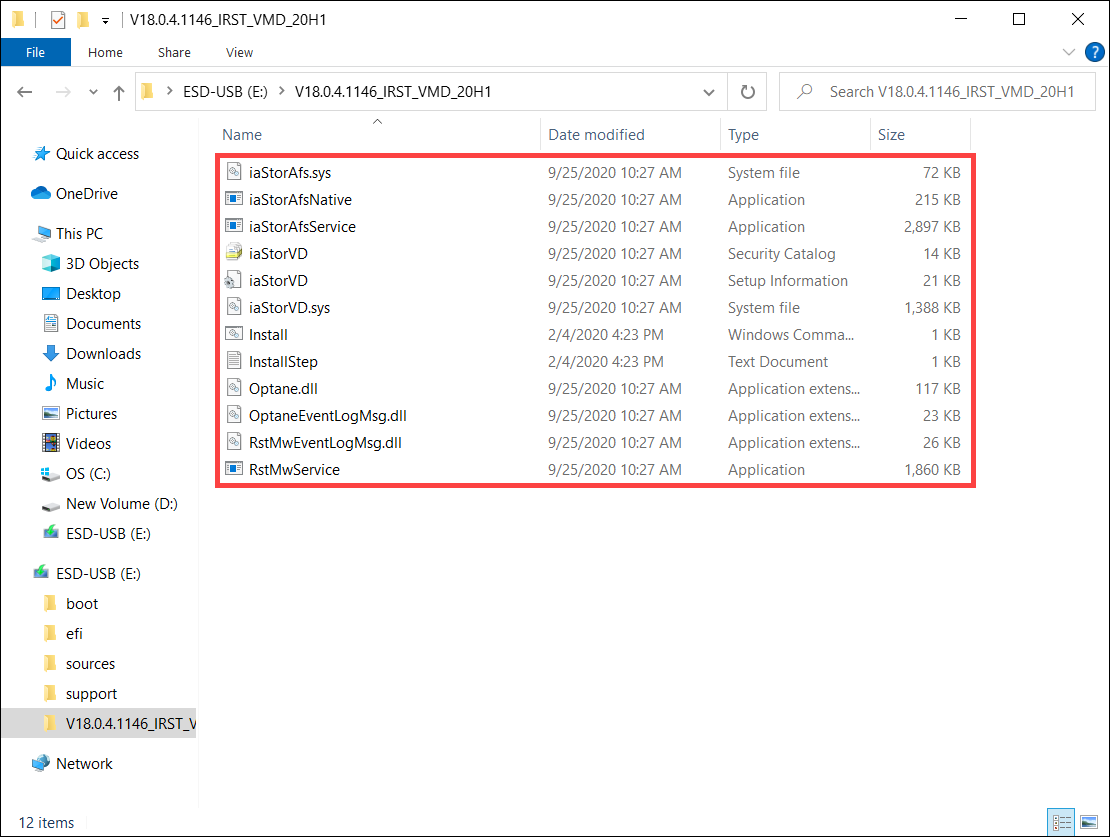
  • After the copying is completed, make sure the folder includes the following files.

Install Intel Rapid Storage Technology (IRST) driver

  • Connect the USB flash drive which includes the Windows 11/10 installation media and Intel Rapid Storage Technology (IRST) driver (V18.0.4.1146_IRST_VMD_20H1 folder) to the target computer. (If you used a DVD to install Windows 11/10, please insert the DVD and consist of the above files USB flash drive to the target computer together.)
  • Restart the Windows 11/10 installation process, here you can learn more about How to use installation media to insatll Windows 11/10.
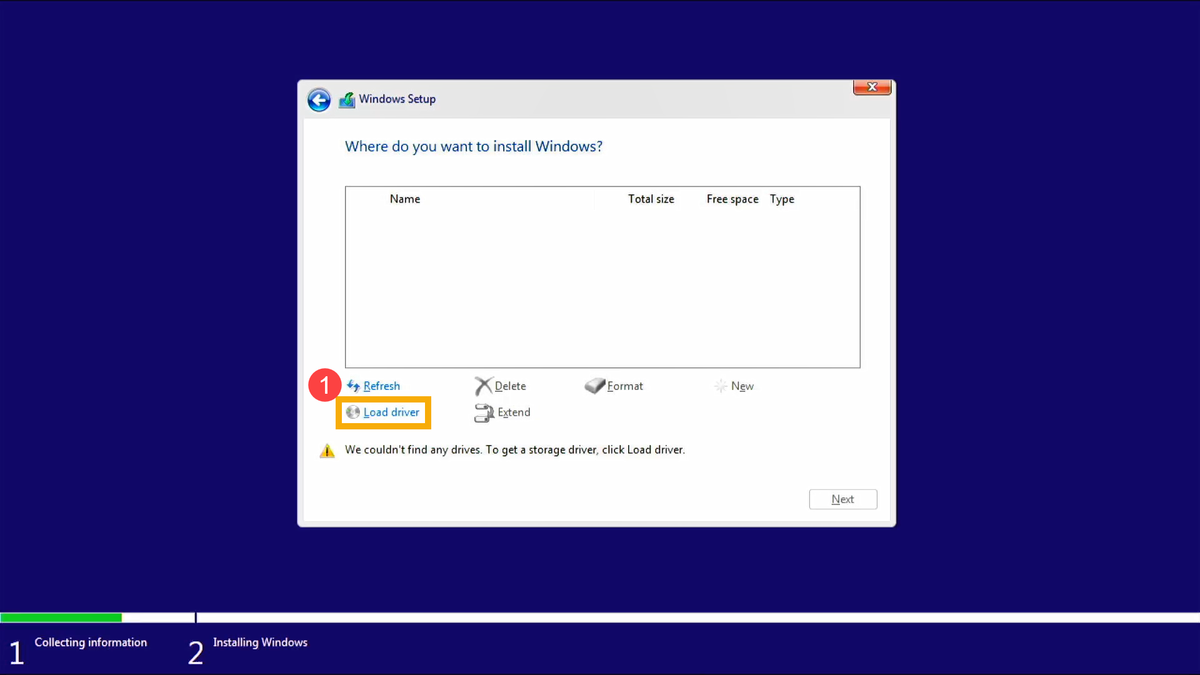
  • On the screen of Where do you want to install Windows and Windows cannot find any drives, please select [Load driver]①.

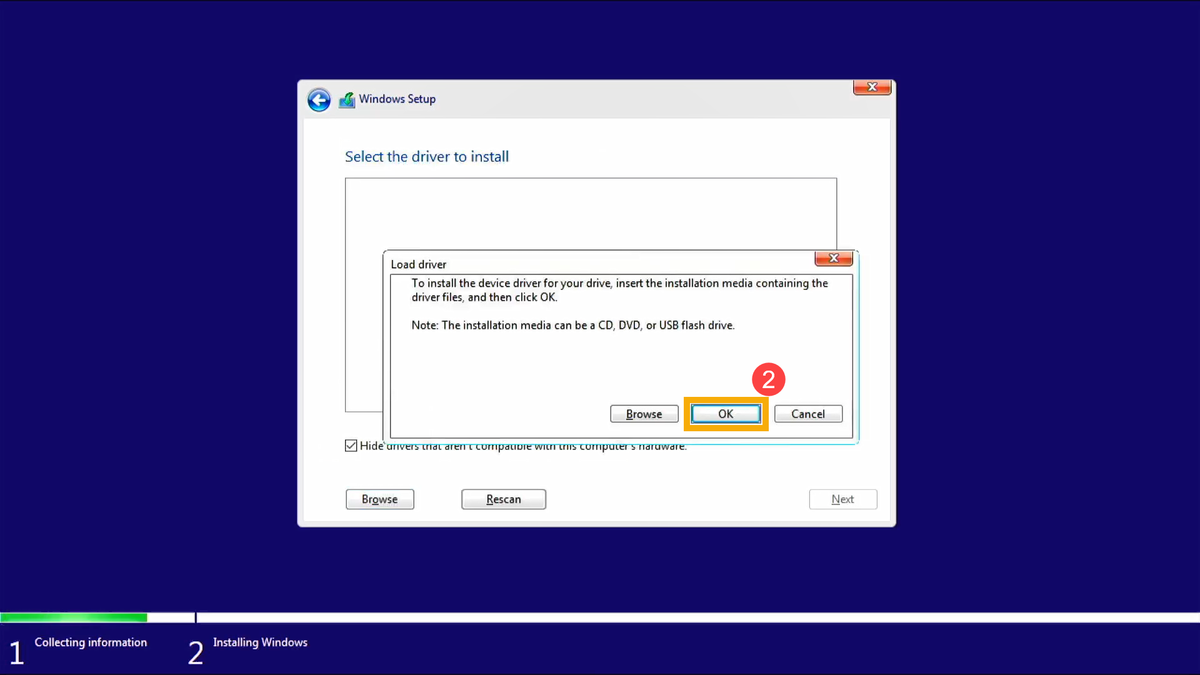
  • Select [OK]②.

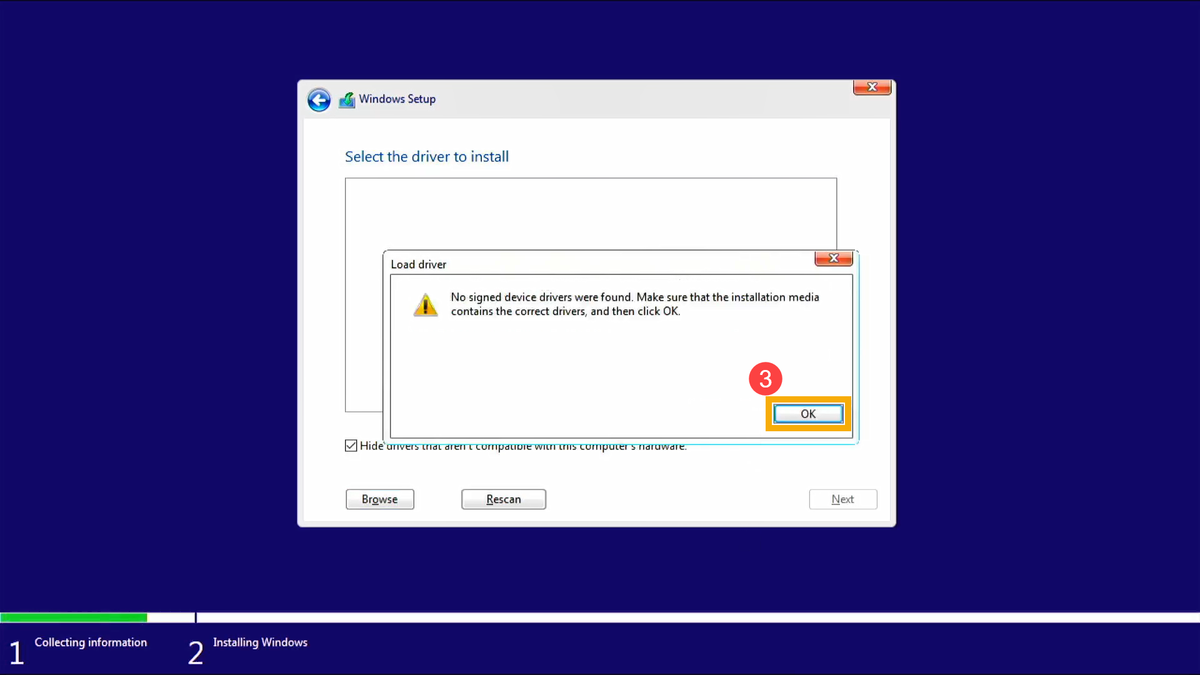
  • Click [OK]③.

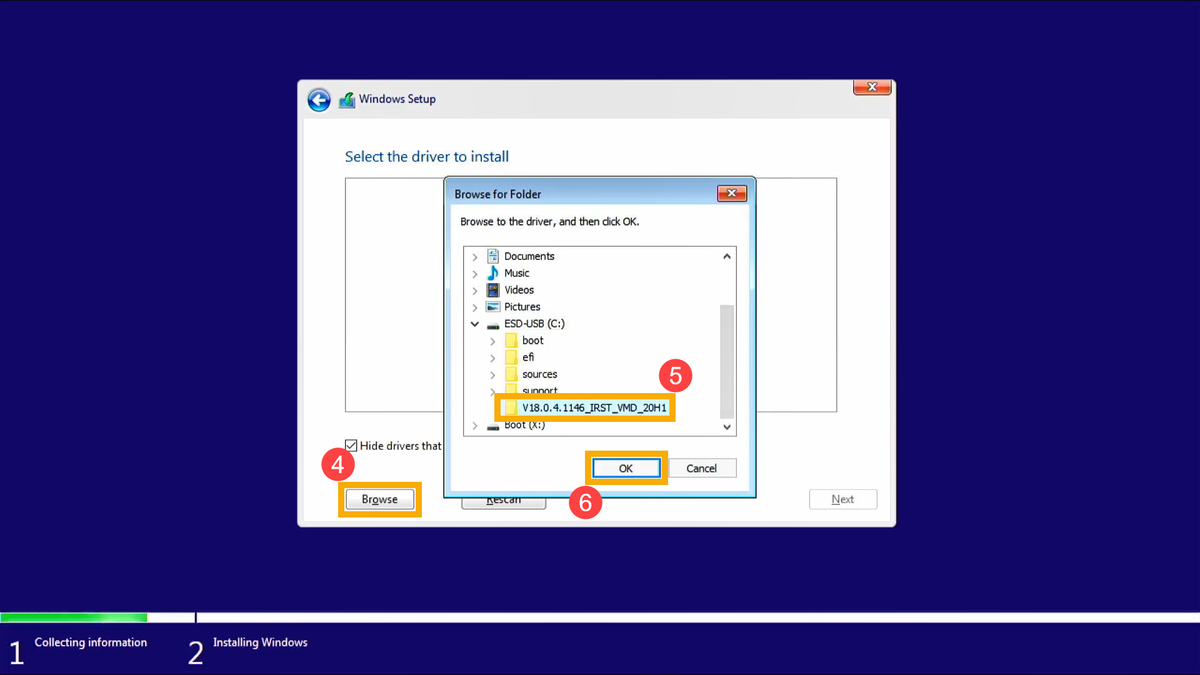
  • Select [Browse]④, then find the [V18.0.4.1146_IRST_VMD_20H1] folder⑤ and select [OK]⑥.

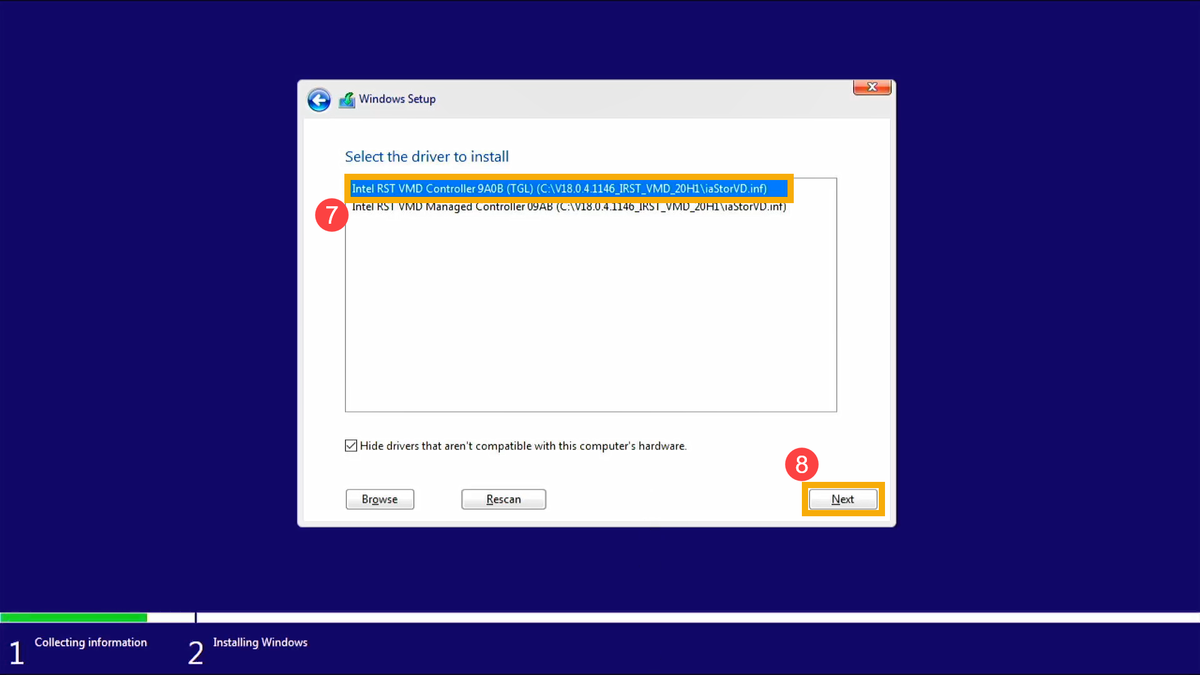
  • Select [Intel RST VMD Controller 9A08 (TGL) ]⑦, then select [Next]⑧ to install the driver.

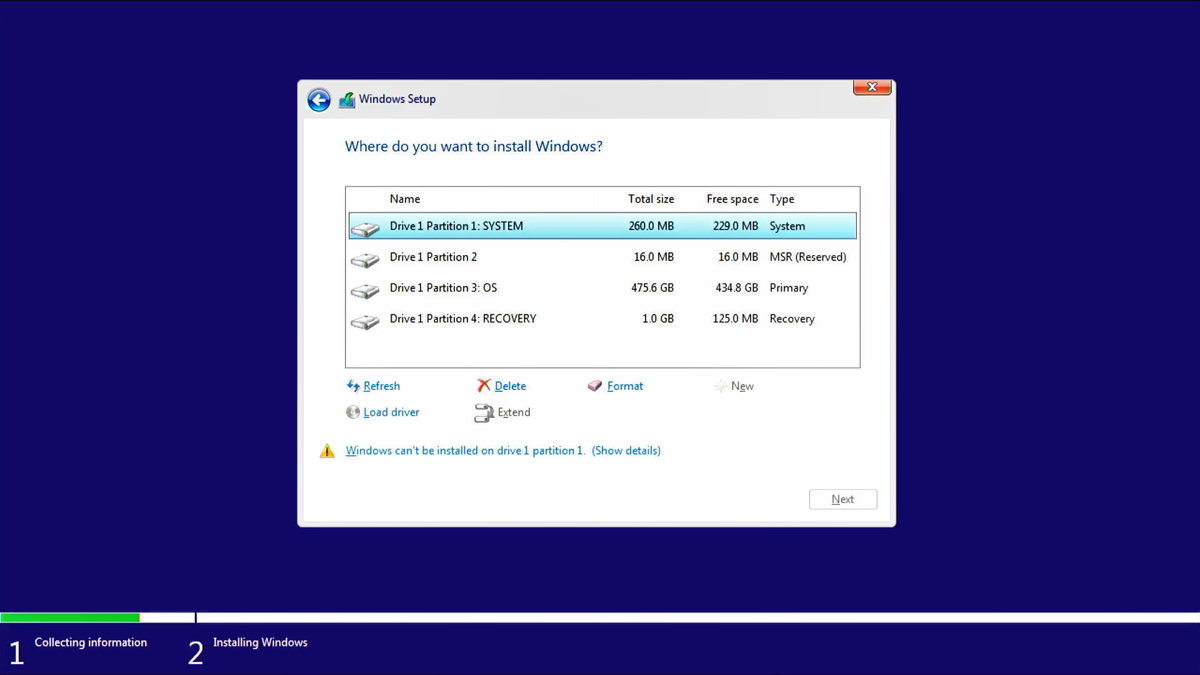
  • After the driver installation is completed, the drives will appear normally.

That's it!

The Windows installer should now see your M.2/NVMe drive!


Original Article:
https://www.asus.com/support/faq/1044458